Core Architecture
Your First 30 Days as a Jamf Pro Administrator, Part 1: Understand Before You Change
Your first week as a Jamf Pro administrator is reconnaissance. You are not here to fix anything yet.
The most dangerous thing a new Jamf administrator can do in week one is make changes. Not because the changes are necessarily wrong — but because you do not yet know what you do not know. A policy that looks orphaned may be the one thing keeping 300 devices off an expired certificate chain. A smart group with a name that makes no sense may be scoping something critical in three other places. A configuration profile that appears to duplicate another one may be doing something subtly different that only matters on a subset of machines.
Before you touch anything, inventory the environment.
The Console — Orientation
The Jamf Pro web interface is where you will spend most of your administrative time. Before you evaluate anything in depth, get familiar with the layout.
The sidebar is your primary navigation. The sidebar is divided into several major sections: Dashboard, Computers, Devices, Users, Blueprints, Compliance, and Settings. The Computers, Devices, and Users sections expand, and each has sub-options. It is worth noting now that Jamf Pro is role-based, so the navigation you see depends on your assigned administrator role and your organization’s enabled features. Don’t be surprised if your sidebar differs slightly from the screenshots.
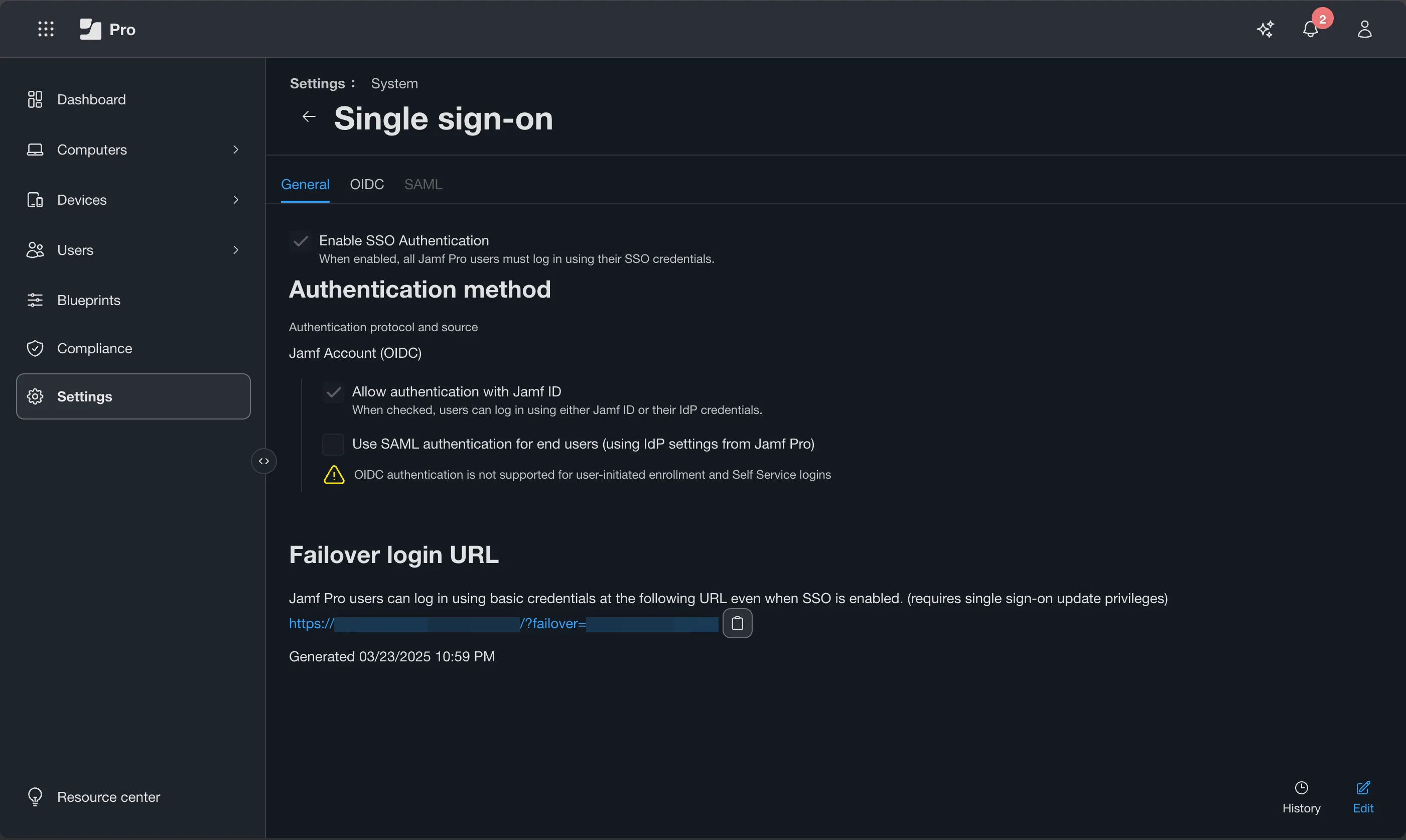
Blueprints and Compliance only appear in the sidebar when OIDC-based SSO through Jamf Account is enabled. These are newer features in Jamf Pro that require OIDC SSO. Blueprints provide a higher-level way to organize device management workflows and are being expanded as Jamf continues modernizing the platform. If you don’t see Blueprints right now, don’t panic. Enabling OIDC SSO for your Jamf Pro environment is a simple setup that will make Blueprints available to you.
The Dashboard on the home screen provides summary counts and status indicators. Treat the Dashboard as a status summary, not a source of truth. A policy count of 47 tells you nothing about whether those 47 policies are doing what they should. To add or remove items from the Dashboard, navigate to the item - Configuration Profile, Policy, Smart Computer Group, etc. - that you want to display, and locate the Show in Jamf Pro Dashboard checkbox at the top right. Check or Uncheck this option as desired. Every Jamf Pro console user has their own Dashboard, so modifying yours does not affect your co-workers’ Dashboards.
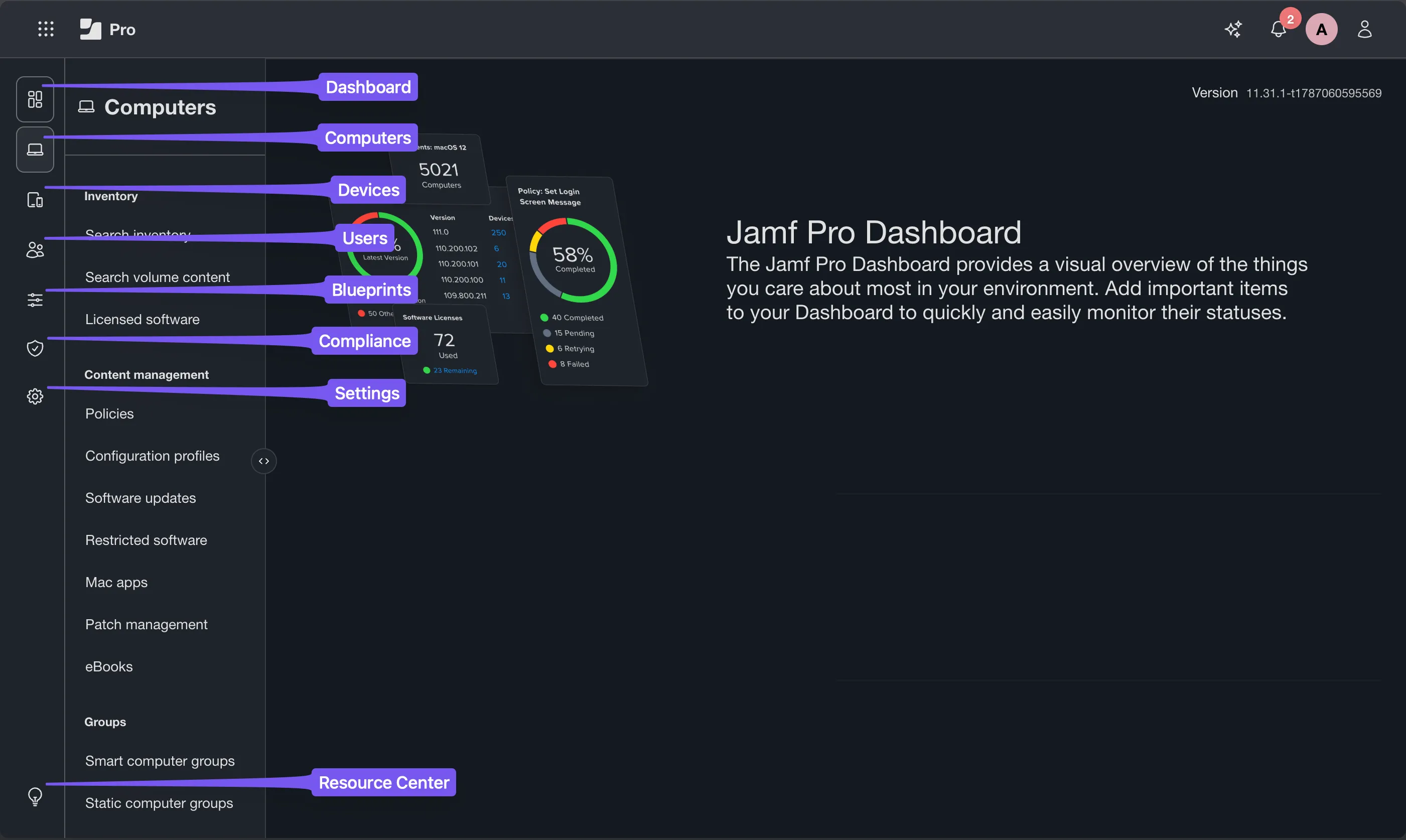
Within the Computers section you will most commonly visit Policies, Configuration Profiles, Smart Computer Groups, and PreStage Enrollments.
The Devices section looks similar to the Computers section with the notable difference that Policies does not appear here. Devices cannot receive policy, which is why it is missing from this section.
The Users section will contain the users that you manage through Jamf Pro. If your organization manages users through an external directory such as Microsoft Entra ID, Google, or a connected LDAP server, you likely will not use this section.
Settings (Push Certificates, Scripts, Packages, Extension Attributes, and Categories) live under the Settings gear icon. The Settings section is also where you configure your Cloud Identity Providers or LDAP Servers as well as other integrations or Jamf Pro specific configurations. The Settings section provides a Search bar at the top of the page. Leveraging this feature will help you find what you are looking for more quickly than navigating each sub-section manually as you start on in the Jamf Pro console.
One architectural note worth understanding early: Jamf Pro currently maintains two APIs. The Classic API primarily returns XML and is being incrementally deprecated. The Jamf Pro API returns only JSON and is the current and forward path. You will encounter references to both APIs, and they are absolutely worth learning. But don’t worry about learning them today. As you inventory your environment, the console is all you will need for now.
To navigate the Jamf Pro APIs in the browser, add /api to your Jamf Pro URL. You will be able to see the available API endpoints for both the Classic API and the Jamf Pro API.
Official documentation: Jamf Pro Documentation
Enrollment — How Devices Get Into Jamf
Understanding how devices enter your environment is foundational. Jamf Pro supports several enrollment methods, but two are most common in organizational deployments.
Automated Device Enrollment (ADE) This is the Apple-native method for organizational devices purchased through Apple or Apple Authorized Resellers to appear directly in Apple Business Manager (ABM) or Apple School Manager (ASM). When a device is associated with your ADE instance and assigned to Jamf Pro, it enrolls automatically during Setup Assistant — the device never needs to be in IT’s hands for configuration. Devices enrolled through ADE become Supervised during enrollment. The Supervised state is required to manage certain security and privacy settings on macOS.
User-Initiated Enrollment (UIE) Allows users to enroll devices manually by navigating to your enrollment URL or following an invitation link. This is common for personally-owned devices in BYOD programs or for devices that were not purchased through ADE. UIE devices are not automatically supervised.
PreStage Enrollments These are the configuration objects in Jamf Pro that define the ADE experience. A PreStage tells Jamf Pro what settings to apply during enrollment — which Setup Assistant screens to present or skip, what management account to create, whether to require authentication, and what packages or configuration profiles to deploy immediately after enrollment completes. A single Jamf Pro instance can have multiple PreStage Enrollments targeting different device populations.
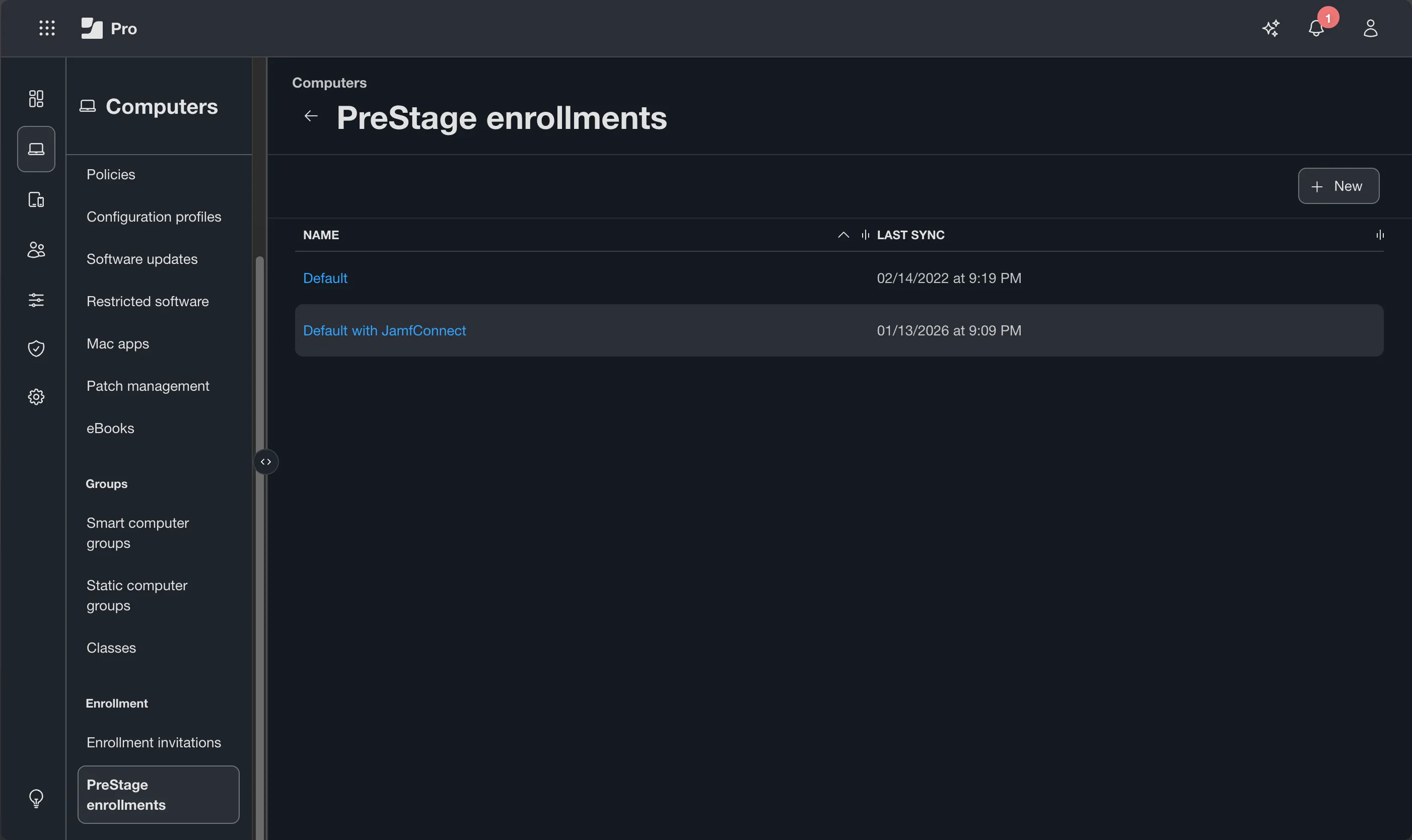
When reading an existing PreStage, pay attention to:
- Scope — which devices are assigned to this PreStage. Only devices in the ADE device list can be scoped to a PreStage.
- Management account — what local account Jamf creates on the device during enrollment, and whether it is hidden.
- Accessibility screen — whether it is presented or skipped during Setup Assistant.
On that last point: Jamf Pro allows you to suppress the accessibility configuration screen during Setup Assistant. Do not do this. Determining a user’s accessibility needs is not within IT’s authority to decide. The accessibility screen allows users to configure VoiceOver, display accommodations, pointer control, and other assistive settings before they interact with the device for the first time. Suppressing it removes that opportunity. This is not a productivity optimization. Leave the accessibility screen alone.
Official documentation: Automated Device Enrollment for Computers
Policies — The Four Questions
A Jamf Pro policy is a task-based enforcement object. It tells managed devices to do something — run a script, install a package, update inventory, trigger a reboot — under defined conditions. A policy is not a settings enforcement mechanism. Settings enforcement is what configuration profiles do. The distinction matters: policies do things, profiles enforce states.
Before reading any policy in an inherited environment, apply a four-question framework. These questions are equally useful for evaluating existing policies and for building new ones correctly.
| Question | Where to Look | What it Does |
|---|---|---|
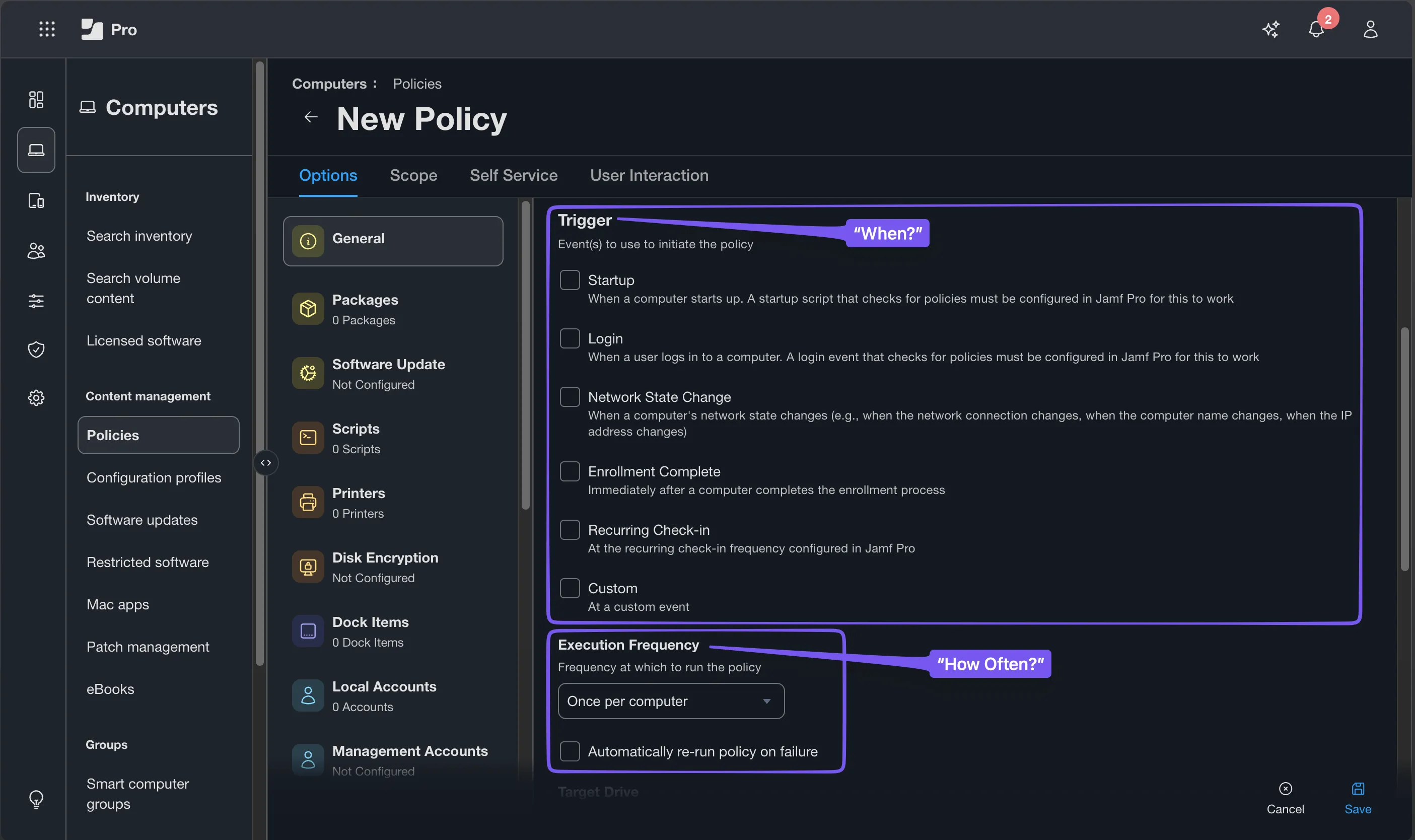
| When? | Trigger | What causes the policy to evaluate and potentially run. Common triggers: Recurring Check-in, Login, Logout, Enrollment Complete, Startup, Network State Change, and Custom Event. While not a Trigger, Self Service is an alternate availability mechanism. |
| How Often? | Execution frequency | Controls how many times the policy runs on a given device. Common values: Once per Computer, Once per User per Computer, Ongoing, Once Every Day, Once Every Week. |
| What? | Payloads | What the policy actually does. Packages, scripts, printer mappings, disk encryption commands, local account management, and so on. |
| Who? | Scope | Which devices or users the policy targets, and which are excluded. |
When building a new policy in the console, the General pane answers When and How Often first. You then configure your payloads to answer What. Scope — Who — is configured last. That sequence maps directly to how the console walks you through policy creation.
When reading an existing policy, work through all four questions before forming any opinion about what the policy does. If you cannot answer all four clearly, the policy is not fully understood — and it should not be changed until it is.
Common things to look for when reviewing an inherited policy set:
- Policies set to Ongoing that appear to be one-time installation tasks. Ongoing means the policy runs on every trigger event, every time. A software installation that should run once and was set to Ongoing will attempt to reinstall on every check-in.
- Policies with no scope. A policy scoped to nothing runs on nothing. It may be intentionally disabled, or it may be an oversight.
- Disabled policies with meaningful names. Disabled does not mean deleted. A policy may have been turned off temporarily and forgotten or may have been the correct solution to a problem that has since been resolved.
- Policies triggered by Custom Event that are called from scripts. Custom triggers are invisible unless you know to look for them. Search your script inventory for
jamf policy -eventcalls and match them to their corresponding policies.
Official documentation: Policies
Configuration Profiles — One Payload per Profile
Configuration profiles are the MDM-native mechanism for enforcing settings on managed devices. Where a policy runs a task, a profile enforces a state. VPN settings, certificates, Wi-Fi networks, login window behavior, Privacy Preferences Policy Control (PPPC) rules, Restrictions payloads, Energy Saver settings — these are delivered and enforced via configuration profile.
Profiles are delivered over the MDM channel using Apple Push Notification service (APNs). When a device is in scope for a profile, the profile is pushed to the device. When a device leaves scope, the profile is removed at the next check-in.
Apply the same four questions to profiles: When does it install, How Often does it enforce (MDM-enforced means it persists until scope changes), What are the payloads, Who is in scope.
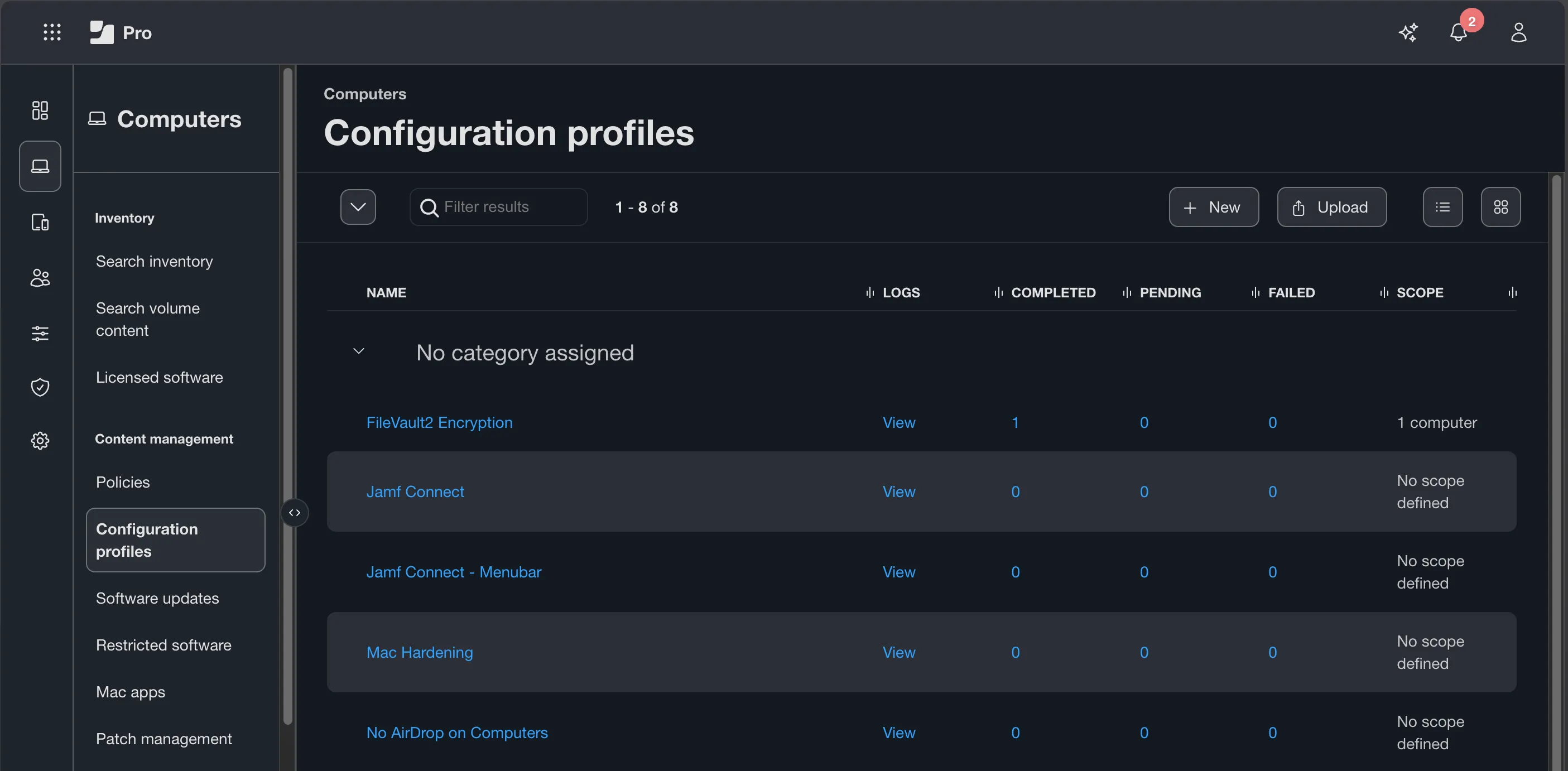
The most important operational rule for configuration profiles in Jamf Pro:
Don’t be monolithic!
When a configuration profile is updated in Jamf Pro, Jamf redeploys the updated profile as a complete configuration rather than transmitting only the changed payload. There are no delta changes. There is no partial update. If you have a single profile containing your Wi-Fi settings, your VPN configuration, your login window customization, and your energy saver preferences — and you need to update one Wi-Fi network — every device in scope simultaneously loses all of those settings while the old profile is removed and the new one applies. In most cases this happens quickly enough to be invisible. But it increases the blast radius of every change and makes troubleshooting significantly harder.
One profile per logical purpose is usually the easiest design to maintain and troubleshoot: a profile for Wi-Fi, a separate profile for VPN, a separate profile for login window settings. Changes to one do not touch the others.
In an inherited environment, you will frequently encounter monolithic profiles containing multiple unrelated payloads. Note them. Rebuilding them into discrete single-purpose profiles is a legitimate improvement task, but right now you are mapping the environment, not taking action.
Official documentation: Computer Configuration Profiles
Smart Groups and Advanced Search
Smart Groups and Advanced Search both let you query your device inventory using criteria. The distinction is purpose, persistence, and whether the result does anything after you close the window.
Advanced Search is a query you run when you need an answer right now. Build criteria, execute the search, get a list of matching devices at that moment in time. The results are a snapshot. You can export them, use them to make a decision, or hand them to a colleague. When you close the search, nothing persists in the environment — no ongoing logic, no scope impact, no membership list that updates itself. Advanced Search is a question you ask once.
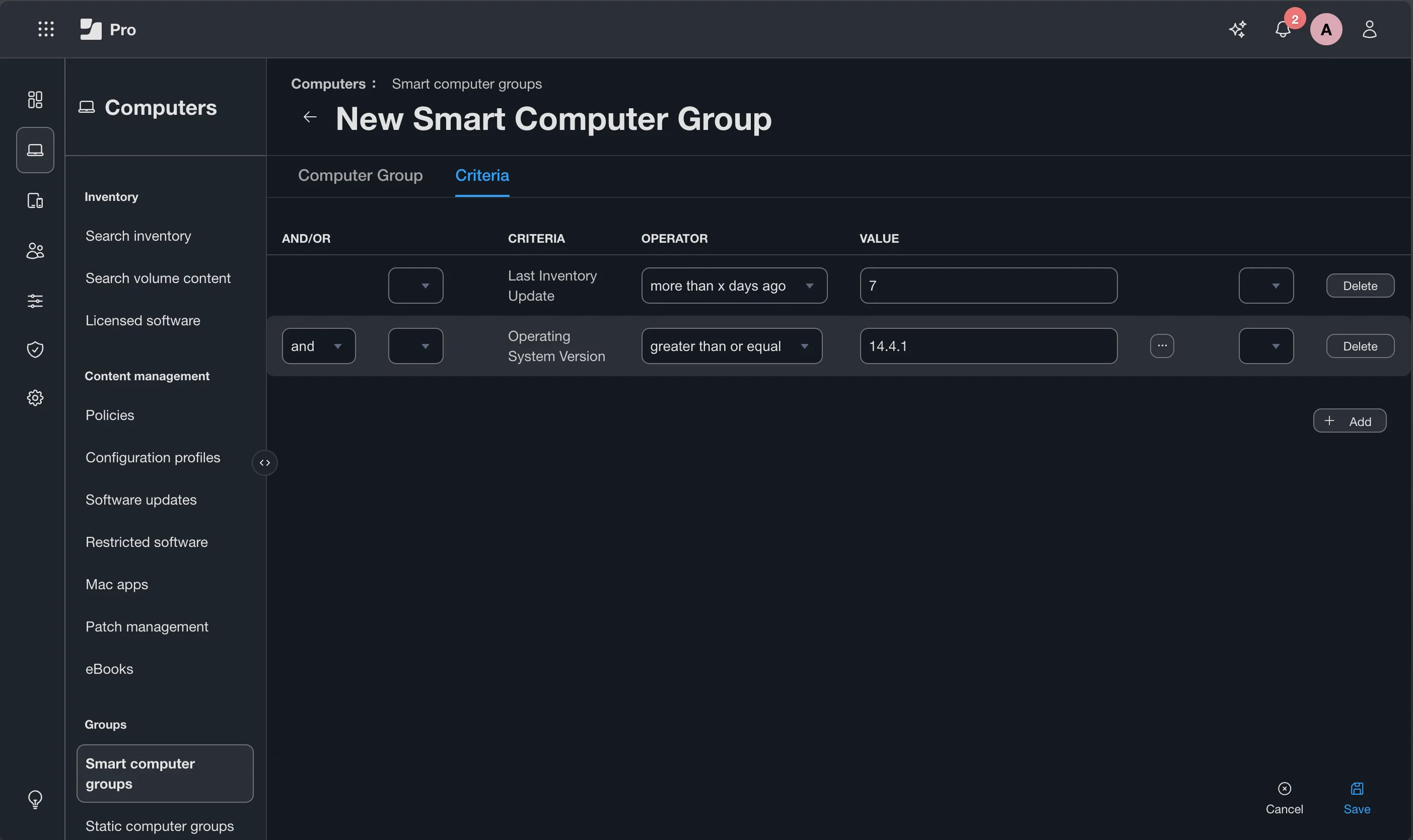
Smart Groups are persistent, criteria-driven membership lists that Jamf Pro evaluates continuously. A device enters or leaves a Smart Group automatically as its inventory data changes. The group does not just answer a question — it maintains a list that other parts of Jamf Pro act on. Policies, configuration profiles, and patch management policies all use Smart Groups for scope. A Smart Group is a living rule that the rest of the environment depends on.
| Advanced Search | Smart Group | |
|---|---|---|
| Purpose | Ad hoc inventory query | Persistent, criteria-driven membership |
| Persistence | Snapshot at time of search | Updates automatically as inventory changes |
| Used for scoping | No | Yes — policies, profiles, patch management |
| Updates automatically | No | Yes |
| Best for | ”Show me all Macs on macOS 26.5.2 right now" | "Scope this policy to all Macs not on the latest OS” |
If you find yourself running the same Advanced Search repeatedly to answer the same question, that question should probably be a Smart Group. If you need a one-time report or a list to hand to someone, Advanced Search is the right tool.
In an inherited environment, pay attention to Smart Groups that have no policy or profile scope and no members — these are technical debt. An Advanced Search saved with a useful name is a reference tool someone intentionally preserved and is worth keeping.
The new administrator trap: building a Smart Group to answer a one-time question, leaving it in the environment without scoping anything to it, and repeating this until the Smart Groups list is full of mystery objects. The discipline is simple: if you create a Smart Group, it should be scoping something. If you only need a list, use Advanced Search.
Official documentation: Smart Groups · Advanced Computer Searches
Extension Attributes
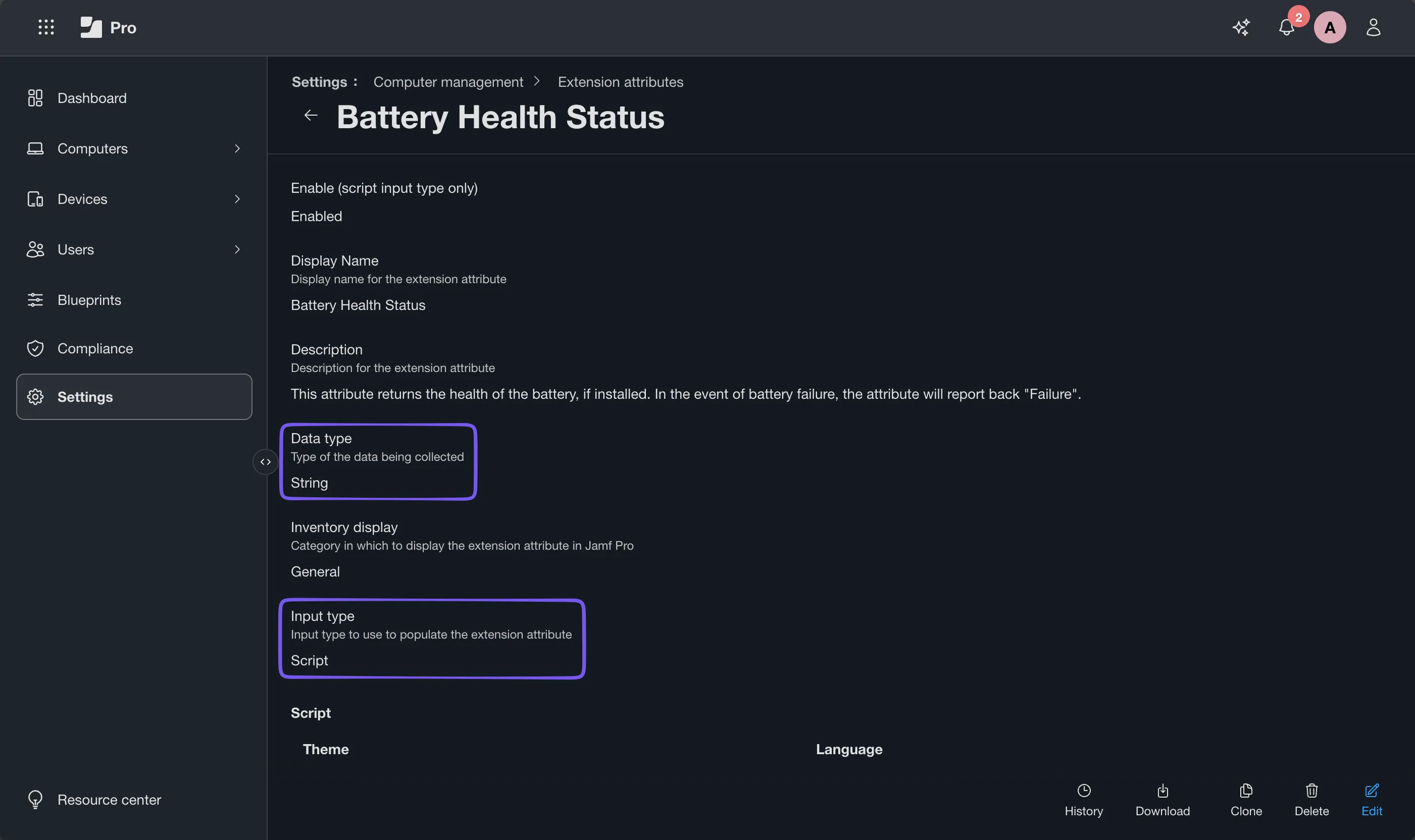
Extension Attributes are custom inventory fields that expand Jamf Pro’s built-in inventory data. Where Jamf Pro natively collects hardware specifications, OS version, installed applications, and similar data, Extension Attributes collect whatever your environment specifically needs to know that Jamf does not track by default.
An Extension Attribute can collect data in four ways: a Script that runs on the device and returns a result, a Directory Service (LDAP) Attribute that pulls a value from your directory service, a Text Field that an administrator populates manually, or a Pop-up Menu with pre-configured fields that can be selected. Script-based Extension Attributes are the most common — they run during inventory collection and can return virtually any data a shell script can gather from the local system. Script-based Extension Attributes execute during inventory collection, so poorly written scripts can noticeably increase inventory times across your fleet.
What makes Extension Attributes operationally significant is that their values feed Smart Group criteria. A Smart Group cannot scope against data Jamf does not have. If you need to scope a policy to “all devices with the legacy VPN client still installed” and that application is not reliably detected through normal inventory, an Extension Attribute that checks for its presence is what makes the Smart Group criteria possible.
In an inherited environment, read the existing Extension Attributes before creating new ones. Duplicate Extension Attributes — two attributes collecting the same data under different names — are common and create confusion when you need to build Smart Group criteria.
Official documentation: Computer Extension Attributes
Scripts and Packages
Scripts and packages are the delivery mechanism for most active work in Jamf Pro. Understanding where they live and how they are called is necessary before you can read any policy in detail.
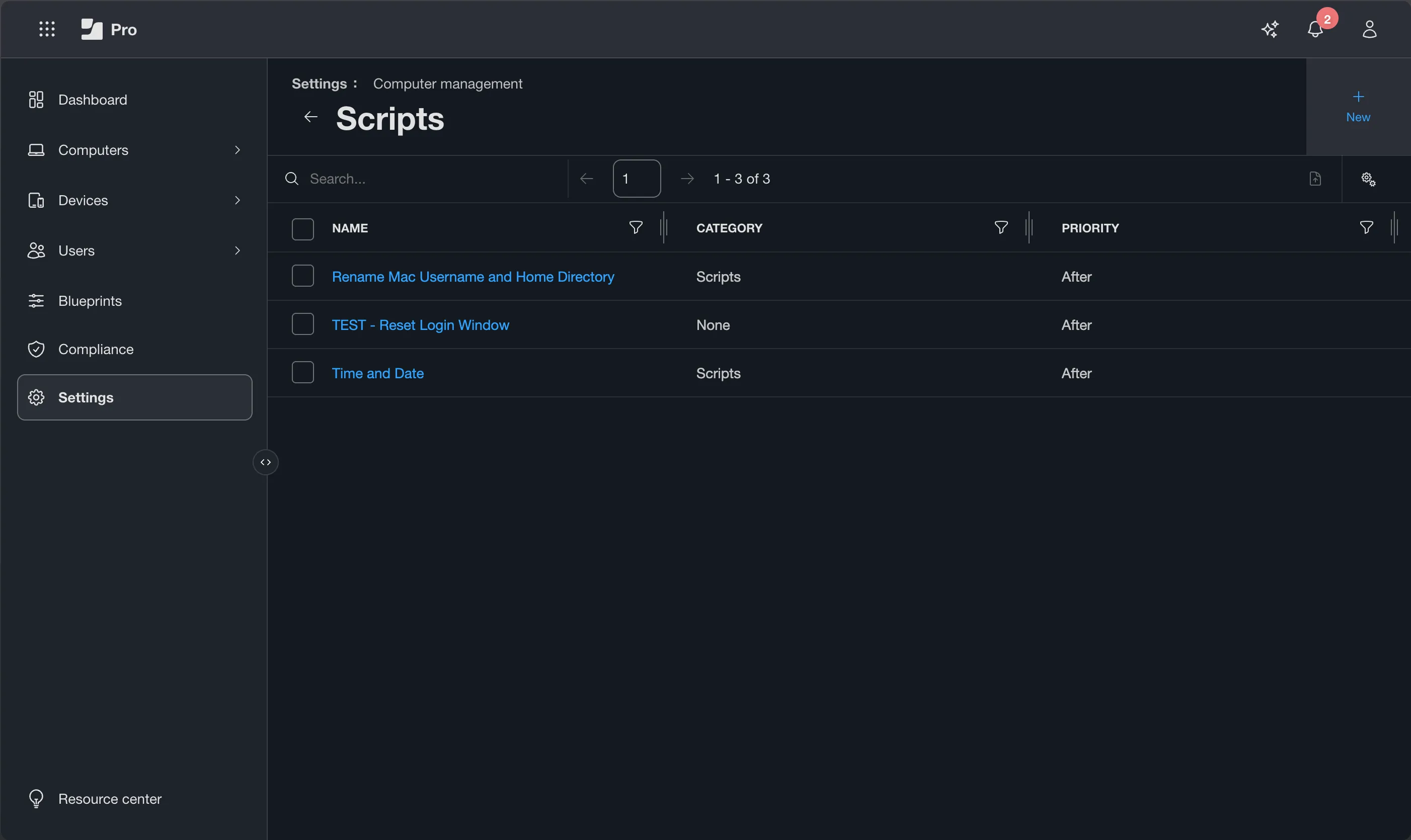
Scripts are stored in Jamf Pro and called as payloads within policies. A script payload specifies which script to run, when to run it relative to other payloads (before or after packages install), and what parameter values to pass. Scripts in Jamf Pro run as root. They can do essentially anything a shell script can do on macOS — which means a script with poor error handling or incorrect assumptions can cause significant damage at scale. It also means that Scripts in Jamf Pro should not include calls to sudo.
When reviewing inherited scripts, pay attention to exit code behavior. A script that exits with a non-zero value fails the policy. If packages are configured to install after the script, a failed script stops those packages from running. Whether that is the intended behavior depends on what the script is doing — but understanding it matters before you change anything.
One final note on scripts: never assume an inherited script is safe simply because it has existed for years.
Packages are stored on your distribution point — either Jamf Cloud Distribution Service (JCDS) for cloud-hosted environments or an on-premise distribution point. Packages are called as payloads within policies and install when the policy runs.
In an inherited environment, the packages list often accumulates significant history: old versions of software, packages for applications no longer deployed, and packages with unclear names. Note them. Do not delete anything in week one.
Integrations — What Else Is Talking to Jamf
Most organizational Jamf Pro deployments integrate with several external systems. Before you can fully understand the environment, you need to know what those integrations are and whether they are healthy.
Apple Push Notification service (APNs)
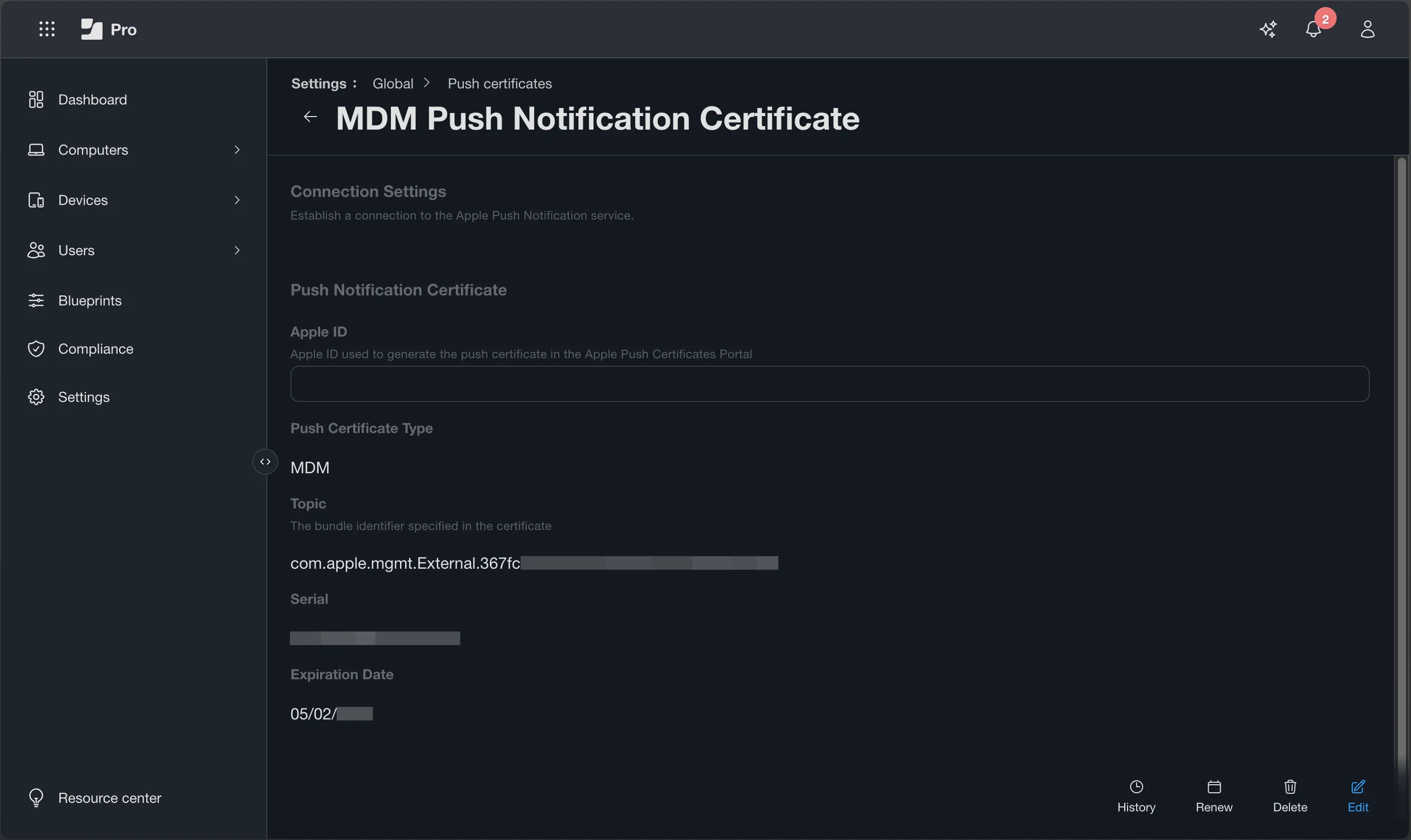
The push certificate is the most critical integration in your Jamf deployment. Without it, MDM-delivered actions, including configuration profile deployment and many remote management commands, stop functioning correctly. APNs certificates expire annually. Find the expiry date now. Put it in your calendar with a sixty-day and a thirty-day reminder. The renewal process must use the same Apple ID used to create the original certificate. If that Apple ID belongs to a person who has left the organization, you have a problem that needs to be resolved before the certificate expires.
Apple Business Manager / Apple School Manager
The server token file that connects Jamf Pro to ABM or ASM also has a limited lifespan. Check the token status and expiry date. Like the APNs certificate, an expired token breaks ADE.
LDAP / Directory Services
Many environments integrate Jamf Pro with Microsoft Active Directory or another LDAP directory for user lookups during enrollment and for LDAP-sourced Extension Attributes. Confirm whether an integration exists and whether it is functional.
SSO
Jamf Pro supports OIDC-based SSO for administrator login, while SAML remains available for end-user/Self Service auth. If SSO is configured, understand which identity provider is in use and what happens if that integration becomes unavailable — can anyone still reach the Jamf console through a local account? Make note of your Failover login URL, as that is your way into Jamf Pro with local credentials.
Official documentation: Push Certificates · Automated Device Enrollment for Computers · SSO with OIDC Through Jamf Account · Single Sign-on Options for Jamf Pro FAQ
Existing Documentation — Or the Absence of It
In most inherited Jamf environments, documentation is sparse, outdated, or nonexistent. This is not an indictment of the people who came before you — documentation is the thing that gets cut when time is short, and time is always short in IT. But the absence of documentation is information in itself: it tells you that institutional knowledge lives in someone’s head, in policy naming conventions, in comments buried in scripts, and in the memory of users who have been around long enough to know why things are the way they are.
When you start, look in the obvious places: internal wikis, OneNote notebooks, Confluence spaces, README files associated with scripts, and the naming conventions the environment uses. Even inconsistent naming conventions often tell a story about who built what and when.
When documentation does not exist, start a scratch pad. Write down what you find as you find it. The notes you take in week one become the documentation that should have existed. They are also the foundation for the environment runbook you will build in week four.
What to Produce by the End of Week One
Week one ends with a written inventory, not a list of changes.
- A record of active PreStage Enrollments and what each one deploys
- A count and rough categorization of active policies, disabled policies, and policies with no scope
- A list of deployed configuration profiles and the payloads each one contains
- The Smart Groups that are actively scoping policies or profiles — the ones the environment actually depends on
- The APNs certificate expiry date, on your calendar with 60-day and 30-day reminders
- The ABM/ASM server token expiry date, on your calendar
- A list of active integrations and their current status
- A list of questions that week two will answer
You have not changed anything. That is correct.
Download: Week 1 Environment Assessment workbook (
.xlsx) — a fillable spreadsheet with a dedicated tab for each of the 15 areas you’ll inventory: instance & licensing, certificates & tokens, computer inventory, FileVault & bootstrap token, enrollment (ADE, ABM, PreStage), configuration profiles, policies, scripts, extension attributes, packages & distribution, smart & static groups, patch & app installers, Self Service, integrations & SSO, and access & org structure. Every item carries a why-it-matters note in Windows/AD terms, a where-to-find-it pointer, and an OK/Watch/Critical flag — all rolling up into a Findings Summary you can hand to a stakeholder. Use it to capture your week-one inventory as you go.
SHA256: ABD3F8D96ECFD65BD22007150DA3D43FDAE2C36E1EF680501AB3D20B170EECEF
Additional Resources
- Jamf Pro Documentation — The authoritative reference for all features discussed in this series. When something changes in a Jamf Pro release, this is where the current behavior is documented.
- Jamf Training Catalog — Self-paced learning from Jamf, including the Jamf 100 course which provides a structured foundation for new administrators.
- Jamf Nation Community — The primary community forum for Jamf administrators. If you have a question, someone has almost certainly encountered the same problem.
- MacAdmins Slack — The largest community of Apple and Jamf administrators. The
#jamfchannel is active and the signal-to-noise ratio is high. - Best Practices for Computer Configuration Profiles - Jamf guidance on Best Practice for Computer Configuration Profiles.