Core Architecture
Your First 30 Days as a Jamf Pro Administrator, Part 3: Safe Administration
You know what exists. You know how it behaves. Week three is about touching things — carefully.
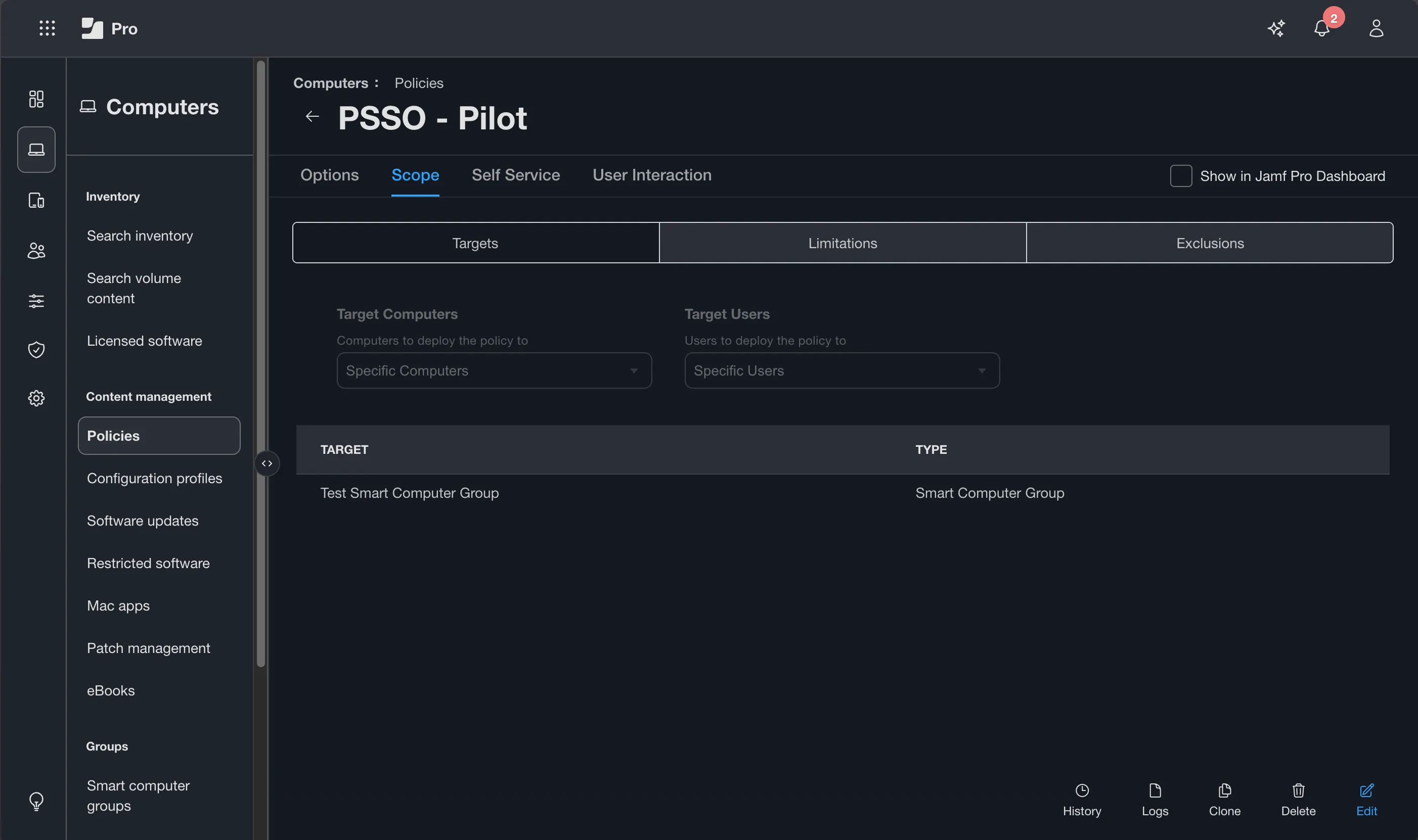
Jamf Pro will let you do things that are operationally unwise. The console does not prevent you from scoping a new policy to all computers and setting execution frequency to Ongoing before you have tested it on even a single test Mac. It does not send email reminders to you that your APNs certificate expires in three weeks. It does not stop you from running a postinstall script that modifies a preference file that 200 users depend on. That awareness is your responsibility. Dashboard reminders are helpful, but they are not a substitute for thorough documentation, due diligence, and calendar reminders owned by your organization. Week three is about building the habits that make you a safe administrator — not because the environment demands it, but because the people relying on their devices deserve it.
Before You Touch Anything in Production — Change Control
Change control in a Jamf environment does not have to be a formal ticketing process, though if your organization has one, follow it. What it does have to be is deliberate. Before making any change that affects managed devices, you should be able to answer four questions:
- What am I changing? A specific, unambiguous description of the change.
- Why am I changing it? The business or operational reason.
- What is the expected outcome? What should be true after the change that was not true before?
- How do I reverse it? A defined rollback path before the change is made, not after something goes wrong.
That last question is the one most often skipped. Define your rollback before you deploy. For a policy, rollback is usually straightforward — disable the policy, flush the logs if it has already run on some devices, investigate. For a configuration profile change, rollback means reverting the profile to its previous state and distributing to all devices currently in scope. For a Smart Group criteria change that affects profile or policy scope, rollback means reverting the criteria and verifying that device memberships return to their previous state.
Write the rollback down. Even informally. Writing the rollback before deployment often exposes assumptions you did not realize you were making.
Blast Radius — Know It Before You Deploy
Every change you make in Jamf Pro has a blast radius: the set of devices that will be affected if something goes wrong. Knowing the blast radius before you act is not pessimism — it is the minimum viable caution that separates a recoverable mistake from an incident.
The blast radius of any policy or profile change is determined by its scope. Before saving and deploying anything, look at the scope one more time and ask: if this does exactly what I think it will do, how many devices are affected? And if it does something unexpected, how many devices are affected?
Common blast radius traps for new administrators:
- A policy scoped to All Computers with execution frequency Ongoing runs on every managed Mac at every check-in, indefinitely. If the payload has an unexpected side effect, it propagates to the entire fleet before you have time to catch it.
- A Smart Group used for critical profile scope that has its criteria changed recalculates membership as Jamf Pro recalculates group membership. Devices that leave the group lose the profile, while devices that join the group receive it. If the criteria change was incorrect, the resulting scope change can affect every matching device before you notice.
- Deleting a Smart Group that is referenced in the scope of a policy or profile does not delete the policy or profile — but it does remove the scoping target, which changes which devices receive it.
The safe pattern for any change with a large potential blast radius: scope to your test group first, verify the behavior, then expand scope in stages. The three-stage testing pattern in the next section formalizes this.
The Three-Stage Testing Pattern
Testing in a Jamf environment should follow the same pattern every time, regardless of how confident you are in the change. Familiarity breeds shortcuts, and shortcuts in endpoint management are how incidents happen.
Stage 1 — Test device, manual trigger
Deploy the change scoped only to your Static Test Group. Trigger the policy manually with sudo jamf policy on the test device, or wait for the next check-in. Verify the outcome. Check jamf.log. Check the policy log in the console. If the behavior is what you expected, move to Stage 2. If it is not, investigate and correct before moving forward.
Stage 2 — Pilot group
Expand scope to a small, representative, willing sample of real users — typically 5 to 20 people who understand they are receiving a change before the rest of the organization and who will report issues if they see them. A pilot group of real users catches environment-specific problems that a test device in IT does not surface: user-specific configurations, unusual software, non-standard login methods, machines with unexpected states. Run the pilot for enough time that you are confident the behavior is consistent. The appropriate pilot duration depends on the complexity of the change — a simple package install may only need a few hours, while a significant profile change may warrant a day or more.
Stage 3 — Production rollout
Expand scope to the full target population. For large deployments, consider a phased rollout — a percentage of devices first, then the remainder — so you have time to catch an issue before it reaches everyone. Monitor the policy logs actively during rollout, not after.
Define a rollback condition before Stage 3. If X happens, here is what you will do. Then monitor for X.
If you ever find yourself thinking “this change is too small to test,” that is usually the moment to slow down. Many production incidents begin with changes that seemed too insignificant to justify a formal validation process. That mindset is exactly how administrators skip the four questions from Part 1 and introduce avoidable mistakes into production.
Privilege Design — Who Can Do What
Jamf Pro is a multi-user application. The privilege model exists so that different administrators have access appropriate to their role — not every administrator in your organization needs the ability to delete packages, modify enrollment settings, or change the APNs certificate.
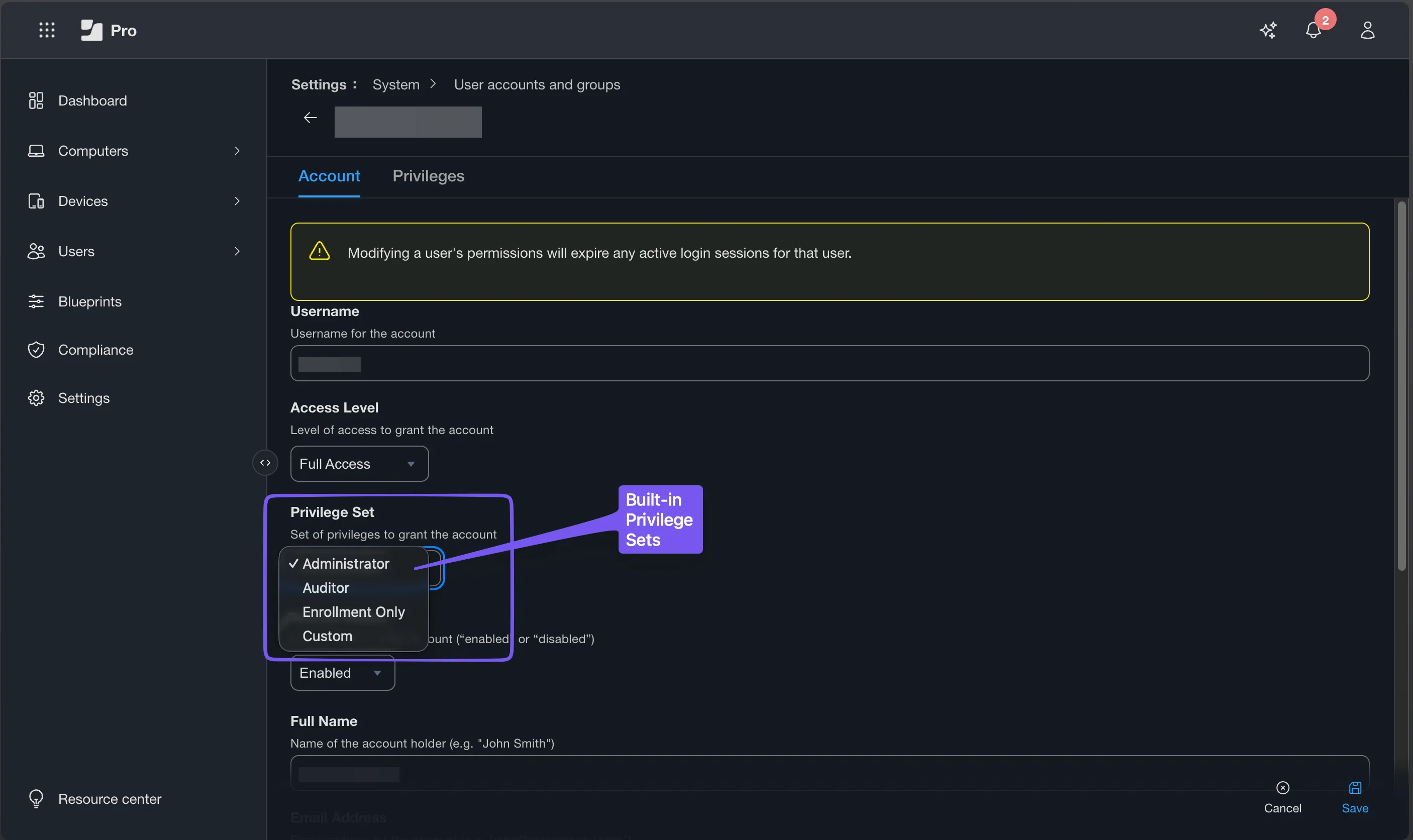
Jamf Pro user accounts and groups are configured under Settings → System → Jamf Pro User Accounts & Groups. Four privilege set options are available:
- Administrator — full access to everything in the console. Appropriate for senior administrators who need unrestricted access.
- Auditor — read access to everything, write access to nothing. Appropriate for auditors, compliance reviewers, or anyone who needs to inspect the environment without changing it.
- Enrollment Only — the privileges required to enroll computers and mobile devices and nothing more. Appropriate for frontline technicians whose role is limited to enrollment tasks.
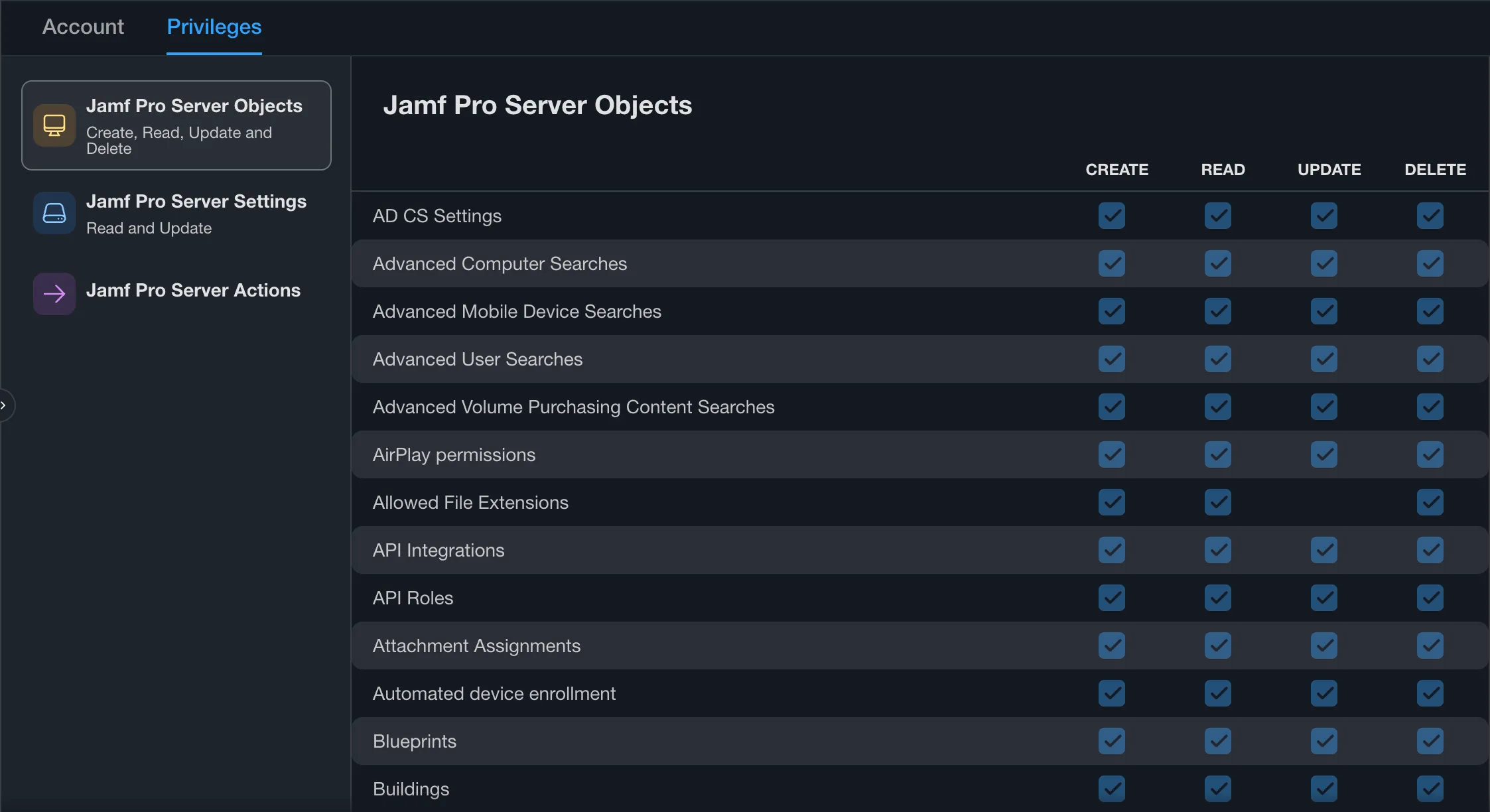
- Custom — manually selected privileges. Appropriate for most other roles. A helpdesk technician who needs to run policies and review computer records does not need access to modify configuration profiles or enrollment settings.
In an inherited environment, it is common to find that every administrator account has Administrator privileges — because it was the easiest choice at setup time and nobody revisited it. This is worth noting during your week one inventory and correcting as a week four improvement task. A useful guiding principle: grant the access that a person needs to do their job, and nothing more.
API credentials deserve separate attention. Any script or integration that connects to Jamf Pro over the API should use a dedicated API credential rather than a human administrator’s credentials. If a human account is used for API authentication and that person leaves the organization, the API credential either stops working when the account is removed or continues to work longer than it should because someone hesitated to remove an account that is being used for automation.
If multiple automation workflows exist, give each workflow its own API Client whenever practical rather than sharing one client across unrelated automation. Individual credentials are easier to audit, rotate, and revoke without affecting unrelated systems.
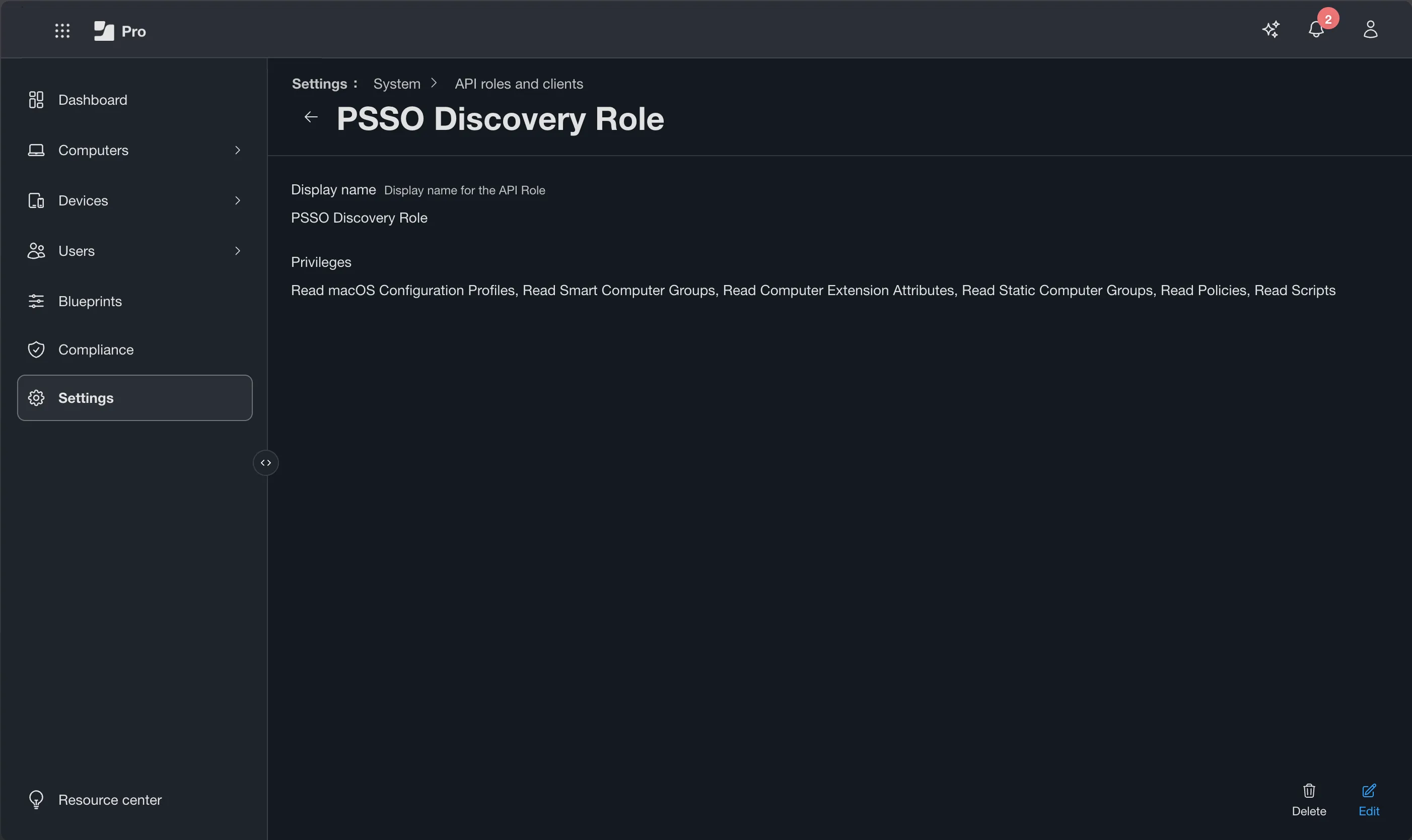
Jamf Pro API Roles and Clients (configured under Settings → System → API Roles and Clients) provide the current and recommended path for API authentication. An API Client consists of a client ID and client secret that exchanges for a short-lived bearer token, which is refreshed by requesting a new token when required. API Roles define exactly which API privileges that client has — nothing more. A script that only needs to read computer inventory has no business being authenticated with credentials that can delete enrollments.
Official documentation: Jamf Pro User Accounts and Groups · API Roles and Clients
The APNs Certificate — The Most Important Expiry Date in Your Console
If you have not already done this after reading Part 1, do it right now before continuing.
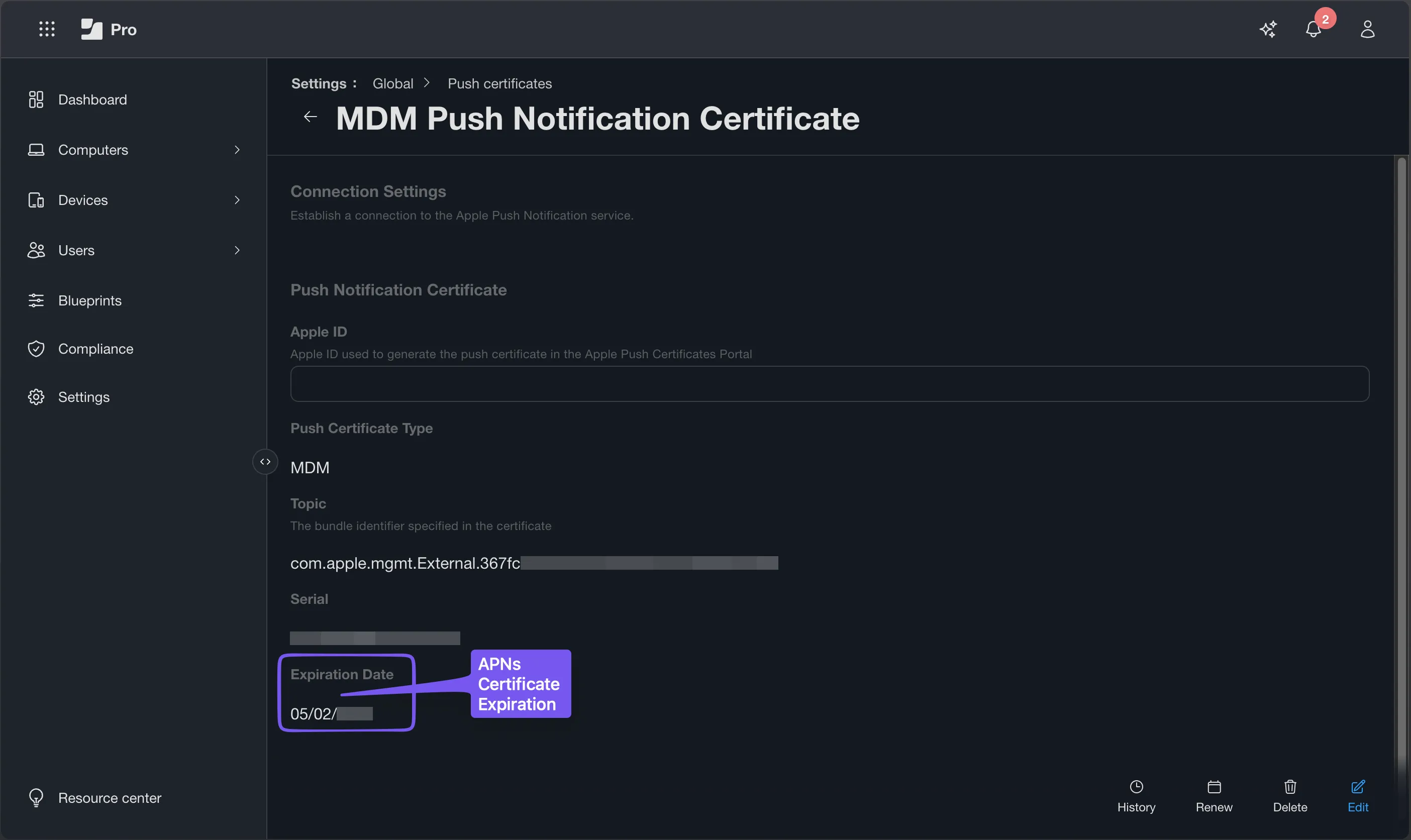
Navigate to Settings → Global → Push Certificates. Find the expiry date on your MDM Push Notification Certificate. Open your calendar. Create two reminders: one 60 days before expiry, one 30 days before expiry. Label them clearly. Close the calendar.
Done. Now you will not miss it.
The APNs certificate is the trust relationship between Jamf Pro and Apple Push Notification service. Every MDM command — configuration profile deployment, profile removal, remote lock, remote wipe — depends on this certificate being valid. When it expires, all of that stops. Devices that are already enrolled do not lose their management state, but Jamf Pro cannot send them any new MDM commands until the certificate is renewed. Practically speaking, an expired APNs certificate means your ability to manage devices through MDM is effectively offline until the certificate is renewed.
The renewal process is straightforward but has one non-negotiable requirement: the renewal must use the same Apple ID that was used to create the original certificate. Creating a new certificate with a different Apple ID does not renew the existing certificate — it creates a different one, and all previously enrolled devices lose their MDM connection. This is not recoverable without re-enrolling every device.
This is the Apple ID concern to investigate during week one if the APNs Apple ID is not documented. Find out who owns it. Confirm that the account is still accessible and that the organization controls the Apple ID rather than an individual who may no longer be with the organization. If the Apple ID is tied to a personal account of someone who has left, resolve this before the renewal window arrives.
Jamf recommends using an institutionally-owned Apple ID for the APNs certificate — one that the organization controls regardless of which individual manages it day-to-day. If your environment does not currently use an institutional Apple ID for this purpose, make a note of it for the improvement backlog.
Official documentation: Push Certificates
What the Console Allows vs. What Is Operationally Safe
A brief but important point: the Jamf Pro console does not enforce operational wisdom. It enforces your configuration. There are a small number of specific combinations it prevents — a full inventory update policy scoped to all computers with an Ongoing execution frequency at Recurring Check-in, for example — but most genuinely risky configurations are entirely possible.
A few examples worth internalizing:
Setting a policy execution frequency to Ongoing with a Recurring Check-in trigger and a destructive payload — this will run on every managed Mac at every check-in until you stop it. The check-in interval is typically 15 minutes.
Changing Smart Group criteria that profiles depend on — as described in Part 2, this takes effect immediately. Devices that now fall out of scope for a profile will have it removed. If the criteria change was incorrect, profile removal propagates before you can intervene.
Deleting a package that is referenced in an active policy — Jamf Pro allows this. The policy will continue to exist and attempt to run. The package payload will fail because the package is gone. If the policy’s script payloads run before the package payload, they may still execute depending on payload ordering.
Manually triggering sudo jamf policy on a device that is scoped to an Ongoing policy with a custom trigger — if you fire the custom trigger manually, the policy runs. If it runs once unintentionally, that is a recoverable mistake. If it runs because a script fires jamf policy -event inside a loop, the consequences depend on what the payload does.
None of these are warning dialogs in the console. They are your working knowledge. The discipline is: before you save, ask what happens if this runs exactly as configured, and what happens if it runs more times than you intended. You will want to be asking the same four questions introduced in Part 1. By now they should be becoming second nature.
| Question | Where to Look | What it Does |
|---|---|---|
| When? | Trigger | What causes the policy to evaluate and potentially run. Common triggers: Recurring Check-in, Login, Logout, Enrollment Complete, Startup, Network State Change, and Custom Event. While not a Trigger, Self Service is an alternate availability mechanism. |
| How Often? | Execution frequency | Controls how many times the policy runs on a given device. Common values: Once per Computer, Once per User per Computer, Ongoing, Once Every Day, Once Every Week. |
| What? | Payloads | What the policy actually does. Packages, scripts, printer mappings, disk encryption commands, local account management, and so on. |
| Who? | Scope | Which devices or users the policy targets, and which are excluded. |
A Practical Approach to Naming Conventions
You encountered naming conventions during your week one inventory — or the absence of them. Week three, as you begin making changes, is a good time to establish the convention you will use going forward, even if you are not yet cleaning up the inherited names.
A consistent naming convention does three things. It tells you what something does without opening it. It makes scope relationships visible when you are reading a list. And it determines execution order when multiple policies share a trigger, as established in Part 2.
A workable pattern:
[Category] - [Description] - [Scope Hint]Examples:
Security - CrowdStrike Agent Install - All MacsSoftware - Adobe Acrobat - Standard UsersMaintenance - Inventory Update - All MacsOnboarding - 01 Base Configuration - New EnrollmentsOnboarding - 02 Software Bundle - New Enrollments
The numeric prefix on sequenced policies — 01, 02 — is the alphanumeric ordering mechanism described in Part 2. Policies with names beginning with a number run before those that do not. Zero-padding (01, 02, 03, …, 10) keeps alphanumeric ordering predictable.
Apply the convention going forward. Do not rename everything inherited all at once — renaming a policy changes its alphanumeric position relative to other policies sharing the same trigger, which may have unintended consequences in sequenced workflows. Rename inherited policies deliberately after you understand whether their current names are load-bearing.
Privilege Audit — Reviewing What Exists
A privilege audit for an inherited Jamf environment has four components:
Active administrator accounts — how many are there, who do they belong to, and what privilege set does each one have? Any account belonging to someone who is no longer with the organization should be disabled first, and removed after verification that nothing depends on them. Any account with Administrator privileges that does not need them should be evaluated for a more appropriate Custom privilege set.
Stale accounts — accounts that are no longer used are a security concern, and Jamf Pro makes them harder to find than you might expect. Account records carry no last-login field, and the console exposes no per-account login history, so this is a manual review rather than a report: cross-reference the account list against who is still on the team and still needs access, then disable (and later remove) anything that no longer maps to a current person or purpose. An Administrator account that nobody can account for is an unnecessary risk surface, whether or not you can prove when it was last used. Change Management logs record actions taken rather than logins — a limited signal, but a useful one when an account shows no recent activity at all.
API credentials — are any scripts or integrations using human administrator credentials for API authentication? If so, identify them and document them for migration to API Roles and Clients. This is improvement backlog work, not immediate action — but it needs to be visible.
Enrollment accounts — if your organization uses Enrollment Only accounts for technician workflows, verify that they are scoped appropriately and that no more access than enrollment is granted.
What to Produce by the End of Week Three
Week three ends with habits established and at least one production change made safely.
- A documented change control approach — even a simple checklist you follow before touching anything in production
- The APNs certificate expiry date on your calendar with 60-day and 30-day reminders, if it is not already there from week one
- A completed privilege audit: who has what access, what should change, and a timeline for making those changes
- A naming convention written down for policies and profiles going forward
- At least one production change executed through the three-stage testing pattern, with the rollback defined before deployment
- API credentials reviewed — human accounts used for API authentication documented for migration to API Roles and Clients
- A note in your improvement backlog for any stale or over-privileged accounts that need to be addressed
You have made your first production change. It was small, tested, reversible, and documented. That is exactly right.
Download: Week 3 Privilege & Access Audit workbook (
.xlsx) — a fillable workbook to complete the privilege audit safely: tabs for accounts & groups (each with a Windows/AD translation), API Roles & Clients, a Certificates & Tokens expiry tracker (APNs, ADE, VPP) with reminder columns, a change-control & naming worksheet, and a Findings & Actions rollup.OK/Watch/Criticalflags throughout.
SHA256: FAF1554281654E5B8A093657AB656CE522517FBFF9FE7297E7365783E3C366A0
Additional Resources
- Jamf Pro Documentation — Authoritative reference for all features discussed in this series.
- Jamf Training Catalog — The Jamf 300 course covers API, scripting, and more advanced administration topics. A natural progression after completing this series.
- Jamf Nation Community — Particularly useful for privilege design questions, where community members frequently share their Custom privilege set configurations for specific use cases.
- MacAdmins Slack — The
#jamfand#jamf-apichannels are both active and relevant to the topics covered in this article. - Apple Push Certificates Portal — Bookmark this. It is where APNs certificates are renewed annually.