API & Automation
Orchestrating the Status Channel, Part 1: Reading What the Device Reports
In Windows fleet management, the pattern of asking a device what state it is in is well understood. A Desired State Configuration compliance report answers whether the current configuration matches the declared intent. An SCCM baseline evaluation result tells you whether a machine is compliant or non-compliant against defined criteria. The administrator queries, the device answers.
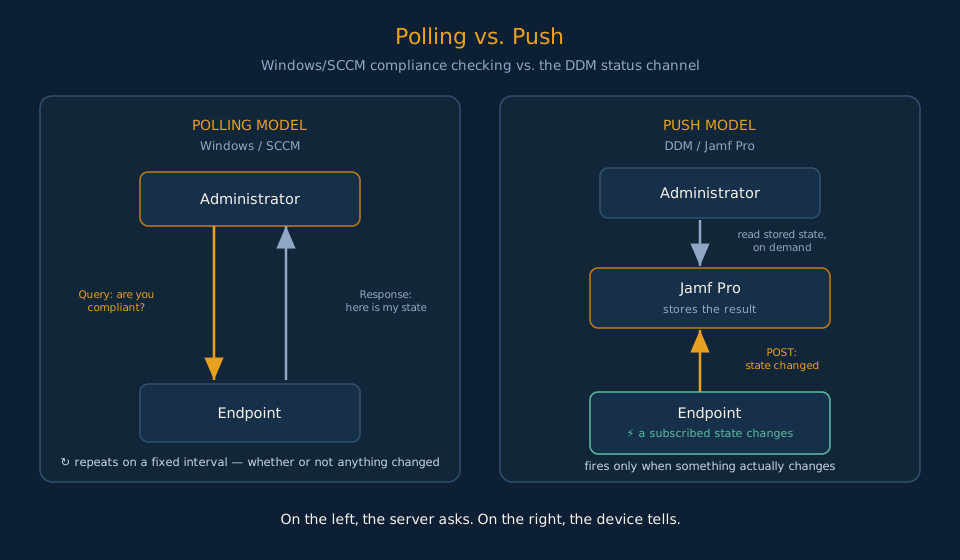
Apple’s Declarative Device Management status channel works differently in one important respect: the device answers without being asked. Apple moved evaluation and reporting to the client because polling does not scale. A server asking ten thousand devices whether they are compliant, on a schedule regardless of whether anything has changed, is a coordination problem that gets worse as the fleet grows. When a subscribed state changes, the managed Mac sends a structured status report to Jamf Pro without being prompted. The server receives it, stores it, and exposes it through the API. The poll is replaced by a push. But the shape of what gets stored, and how to read it, maps directly to concepts Windows administrators already know.
The Status Item Model
When a managed Mac submits a DDM status report, Jamf Pro stores the result as a collection of key-value pairs called status items. Each item has three fields: a key that names the data point, a value that contains the reported state, and a lastUpdateTime that records when Jamf Pro last received an update for that key.
The GET /api/v1/ddm/{clientManagementId}/status-items endpoint returns the full collection for a given device:
{
  "statusItems": [
    {
      "key": "management.declarations.configurations",
      "value": "{\"active\":[\"com.example.config\"],\"identifier\":\"com.example.declarations\",\"server-token\":\"42\",\"valid\":\"valid\"}",
      "lastUpdateTime": "2026-06-30T14:30:00Z"
    },
    {
      "key": "management.declarations.activations",
      "value": "{\"active\":[\"com.example.activation1\"],\"identifier\":\"com.example.activations\",\"server-token\":\"15\",\"valid\":\"valid\"}",
      "lastUpdateTime": "2026-06-30T14:35:00Z"
    },
    {
      "key": "softwareupdate.install-state",
      "value": "idle",
      "lastUpdateTime": "2026-06-30T14:40:00Z"
    }
  ]
}The management.declarations.* keys report the evaluation state of declarations applied to the device. The softwareupdate.* keys report software update enforcement state and will be covered in detail in the SOFA series.
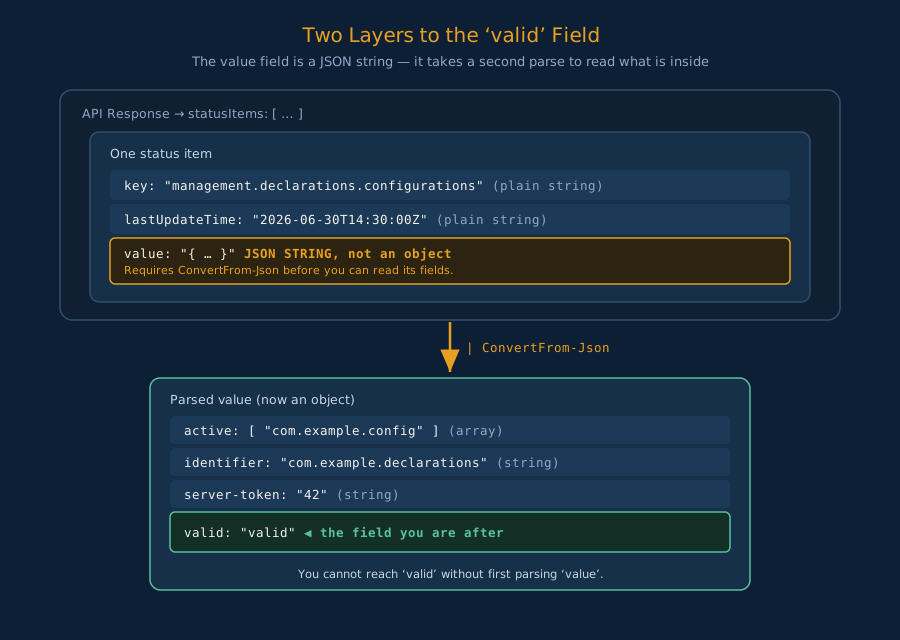
Notice that the value field for declaration keys is not a simple string. It is a JSON object encoded as a string. To work with its contents, that string requires a second parse step. This is the most common source of confusion when first reading DDM status data in PowerShell.
Obtaining the clientManagementId
Every DDM API call requires a clientManagementId, which is a UUID unique to that device’s DDM enrollment. This is not the same as the computer’s numeric Jamf Pro ID. The two identifiers are different and are used for different endpoints.
The clientManagementId lives in the computer’s inventory record under general.managementId. The examples in this article use AdminCrossover.Tools for authentication and inventory retrieval, so those steps stay out of the way of the DDM-specific logic.
# Authenticate to Jamf Pro and store the session for subsequent calls.
$Session = Connect-ACJamfPro `
    -JamfUrl      'https://yourinstance.jamfcloud.com' `
    -ClientId     $env:JAMF_CLIENT_ID `
    -ClientSecret $env:JAMF_CLIENT_SECRET

# Retrieve the computer inventory record. ManagementId maps to general.managementId.
$Computer = Get-ACJamfComputer -Id 42

$ClientManagementId = $Computer.ManagementIdIf ManagementId is null or empty, the device is not DDM-enrolled. The DDM status endpoints will return a 404 for any null ID, so check enrollment state before proceeding.
Interpreting Declaration Status Values
The management.declarations.configurations key reports the collective state of configuration declarations applied to the device. When you parse its value string, you get an object with four fields:
active: An array of declaration identifiers currently active on the device.identifier: The overall declaration set identifier assigned by Jamf Pro.server-token: An opaque string the device and server use to detect whether the declaration set has changed without transmitting full payloads on every check.valid: The compliance state. Three possible values:valid,invalid, orunknown.
The valid field maps directly to compliance states Windows administrators read from DSC or SCCM baselines:
DDM valid value | Windows equivalent | Meaning |
|---|---|---|
valid | Compliant | Device state matches the declared configuration. |
invalid | Non-Compliant | Device state deviates from the declared configuration. |
unknown | Pending / Error | Device has not yet evaluated, is still applying, or encountered an error. |
An invalid state is the signal that automation should act on. An unknown state typically means the device needs more time or has not yet checked in. Do not treat unknown as equivalent to invalid.
PowerShell Inspection Script
With the session established and the clientManagementId in hand, fetching and filtering DDM status data is a short pipeline. The actual API response payload lives in .Data.
# Fetch all DDM status items for the device.
$StatusResponse = Invoke-ACJamfApi `
    -Endpoint "/ddm/$ClientManagementId/status-items" `
    -Method   Get

# The payload lives in .Data. statusItems is the array.
$StatusItems = $StatusResponse.Data.statusItems

if (-not $StatusItems -or $StatusItems.Count -eq 0) {
    Write-Warning "No DDM status items found. The device may not have sent a status report yet."
    return
}

# Filter to declaration keys and parse each string-encoded JSON value.
$DeclarationItems = $StatusItems |
    Where-Object { $_.key -like 'management.declarations.*' } |
    ForEach-Object {
        $RawKey         = $_.key
        $RawValue       = $_.value
        $LastUpdateTime = $_.lastUpdateTime
        $ParsedValue    = $null
        $ParseError     = $null

        try {
            $ParsedValue = $RawValue | ConvertFrom-Json -ErrorAction Stop
        }
        catch {
            $ParseError = $_.Exception.Message
            Write-Warning "Could not parse value for key '$RawKey': $ParseError"
        }

        [PSCustomObject]@{
            Key            = $RawKey
            RawValue       = $RawValue
            ParsedValue    = $ParsedValue
            LastUpdateTime = $LastUpdateTime
            ParseError     = $ParseError
        }
    }

Write-Host "Found $($DeclarationItems.Count) declaration status item(s)."
$DeclarationItems | Format-ListThe script builds a [PSCustomObject] per declaration key. The RawValue field is always present for inspection. The ParsedValue field holds the deserialized object when parsing succeeds. If parsing fails, ParseError records the reason and ParsedValue is null.
The valid state lives at $item.ParsedValue.valid. Filter for invalid in downstream pipeline logic:
$NonCompliant = $DeclarationItems | Where-Object { $_.ParsedValue.valid -eq 'invalid' }When you are finished, revoke the session token:
# Invalidate the Jamf Pro session token.
Revoke-ACJamfAccessTokenFailure Modes
DDM status queries fail silently more often than they fail loudly. Understanding the likely causes of each failure state reduces diagnostic time.
No status items returned. GET /api/v1/ddm/{clientManagementId}/status-items returns an empty statusItems array when the device has not yet sent a DDM status report. This is common on recently enrolled devices, devices that have not checked in since declarations were applied, or devices where the DeclarativeManagement MDM command has not yet been queued. It is not an error condition; it is a timing condition. Wait for the next check-in or force a DDM sync, then query again.
404 on the status-items endpoint. The clientManagementId is either incorrect or the device is not DDM-enrolled. A null or empty ManagementId from Get-ACJamfComputer is the diagnostic signal. Verify the device has DDM enrollment enabled in Jamf Pro and that the inventory record is current.
valid: unknown on a declaration. The device has received the declaration but has not completed evaluation. This is a transient state that typically resolves after the device evaluates and reports. It is not the same as invalid. Do not trigger remediation on unknown. Wait for the state to resolve to either valid or invalid before acting.
value field fails to parse. The string-encoded JSON in the value field can be malformed if the device reported a partial or corrupted status update. The inspection script captures ParseError on these items rather than throwing. Treat a parse failure as an inconclusive result, not a compliance verdict.
403 on the status-items endpoint. The API client is missing the Read Computers or Read Mobile Devices privilege. Both are required regardless of which device type is being queried. Verify the API role assigned to the client includes both.
Stale lastUpdateTime. A lastUpdateTime that is hours or days old on a declaration key means the device has not sent a fresh status report recently. The stored value is the last known state, not the current state. This is particularly important when checking compliance before a deadline. Always consider how recent the data is, not just what it says.
The operating rule
Before building automation around DDM status data, understand what the data actually contains. Status items are key-value pairs, not structured objects. The declaration state values are JSON strings that require a second parse step. The valid field lives inside that nested structure, not at the top level of the status item. Know the shape before you build on it.